
How to Download Pinterest Videos on PC and Mac
Any modern desktop browser works — Chrome, Edge, Firefox or Safari.
Last updated · Reviewed by the PinSaveHD team · How we check facts
To download a Pinterest video on a computer, open the pin on pinterest.com, copy the address from the browser bar, paste it into PinSaveHD and press Enter. Click Download next to the size you want. The MP4 saves to your Downloads folder on Windows, Mac and Chromebook.
Step by step
- 1Copy the address
Open the pin on pinterest.com and copy the URL from the address bar.
- 2Paste and press Enter
Paste it into PinSaveHD and press Enter.
- 3Download
Click Download next to the size you want. Check your Downloads folder.
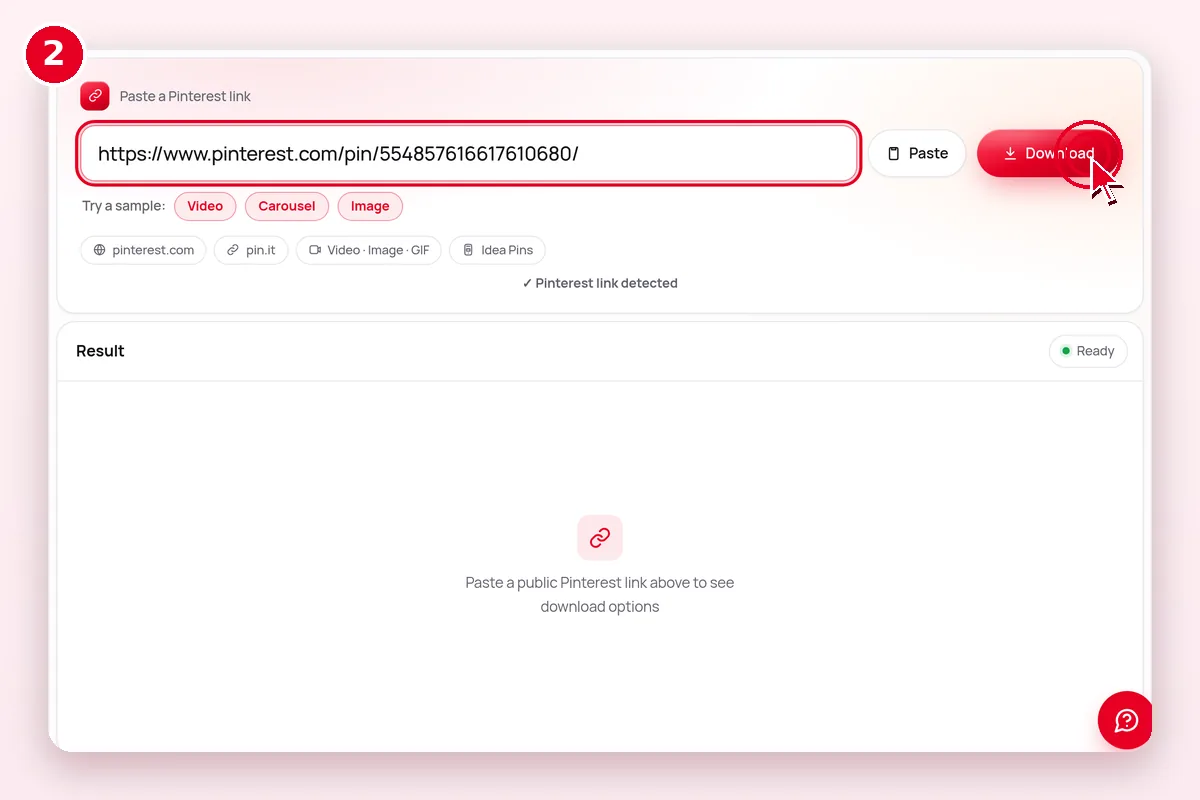 1–2. Paste the pin address and press Enter
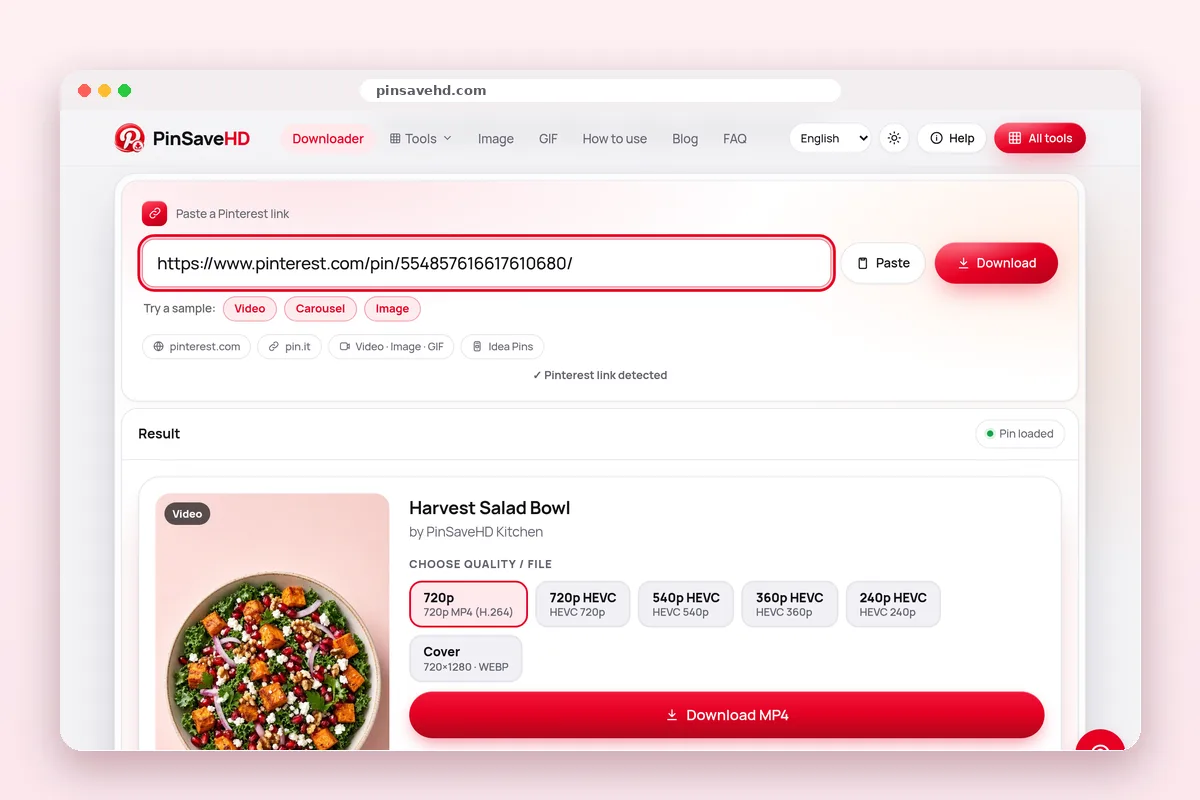 3. Click Download next to the size you want
Where do downloaded files go?
| Device | 1. Copy the link | 2. Where the file goes | Tip |
|---|---|---|---|
| iPhone / iPad | Pin → Share → Copy link | Files › Downloads (Safari) | Open the file, tap Share → Save Video/Image for Photos. iPhone guide |
| Android | Pin → Share → Copy link | Downloads folder, shows in Gallery | Use Chrome. Android guide |
| Windows / Mac | Copy the address bar URL | Downloads folder | Press Enter after pasting. PC & Mac guide |
| Chromebook | Copy the address bar URL | Files › Downloads | Drag files to Google Drive to back them up. |
More details
Steps
- Open the pin on pinterest.com and copy the URL from the address bar (or use the share menu).
- Paste it into PinSaveHD and press Download.
- Choose the format; the file lands in your Downloads folder.
Power-user tips
- Need many pins? Use the bulk downloader or board downloader for a ZIP.
- Editing on Windows? Install the free HEVC extension or choose H.264.
- Press Ctrl/⌘+V anywhere on the page — the box picks up the link.
Related tools
 Video DownloaderHD MP4 from any public pin
 Image DownloaderOriginal full-size photos
 GIF DownloaderAnimated GIF pins
 Idea Pin / StoryEvery page of an Idea Pin
 Carousel DownloaderAll slides at once
 Board DownloaderWhole board → ZIP
Explore: all Pinterest tools · creator tools · guides · FAQ hub · how-to guide · Pinterest glossary · use cases · blog
Frequently asked questions
Which browser works best?
Any current Chrome, Edge, Firefox or Safari works.
Does it work on Chromebook?
Yes, it is just a web page.
Is PinSaveHD free?
Yes. It is free, with no sign-up and no watermark. A fair-use limit of about 30 lookups a minute applies.
Can I download private Pinterest pins?
No. Only public pins work. Private boards, secret boards and deleted pins cannot be saved, and we never ask for a login.
Does PinSaveHD add a watermark?
No. You get the file exactly as Pinterest serves it.
Where do downloaded files go?
On Android and computers, to your Downloads folder. On iPhone, Safari saves to Files › Downloads; tap Share → Save to move it to Photos.