
How to Use PinSaveHD: Download Pinterest Videos, Images & GIFs
A complete, plain-English guide. Paste any public Pinterest link below to try it as you read.
- No sign-up
- No watermark
- Free to use
Paste a public Pinterest link above to see download options
Works with public pins from pinterest.com (all country domains) and pin.it share links. Press Enter or tap the button to start.
Last updated · Written by the PinSaveHD team
PinSaveHD is a free web tool that saves public Pinterest videos, images and GIFs to your phone or computer in the best quality Pinterest has. This guide walks you through every step in simple words, from copying a link to finding the file on your device. You do not need an account, an app or a browser extension. Everything works in your normal web browser.
If you are in a hurry, paste a link into the box above and press Download. If you want to understand every option, keep reading.
What you can download with PinSaveHD
PinSaveHD works with any public Pinterest link. Here is what you can save:
- Videos – video pins as MP4 files, usually in 720p HD. See the Pinterest Video Downloader.
- Images – photos in their original uploaded size, not the small feed preview. Use the Image Downloader.
- GIFs – animated pins as GIF files with the GIF Downloader.
- Carousels – every slide of a multi-image pin with the Carousel Downloader.
- Idea Pins and stories – every page of a multi-page pin with the Idea Pin Downloader.
- Boards – the public pins on a board with the Board Downloader.
- Profiles – recent public pins of a user with the Profile Downloader.
- Thumbnails – the cover image of a video pin with the Thumbnail Downloader.
How to copy a Pinterest link
Every download starts with a link. The way you copy it depends on your device.
On the Android app
- Open the Pinterest app and tap the pin you want so it opens full screen.
- Tap the Share button (the arrow or three dots near the pin).
- Tap Copy link. A short message confirms the link is copied.
On the iPhone or iPad app
- Open the pin in the Pinterest app.
- Tap the Share icon below the pin.
- Choose Copy link. The link is now on your clipboard, ready to paste.

On a desktop browser
- Open pinterest.com and click the pin so it opens on its own page.
- Click the address bar at the top of the browser to select the full link.
- Press Ctrl + C on Windows or Cmd + C on Mac to copy it.
Short links that start with pin.it work too. PinSaveHD expands them for you automatically. You can also check one with the pin.it Link Expander.
How to download a Pinterest video step by step
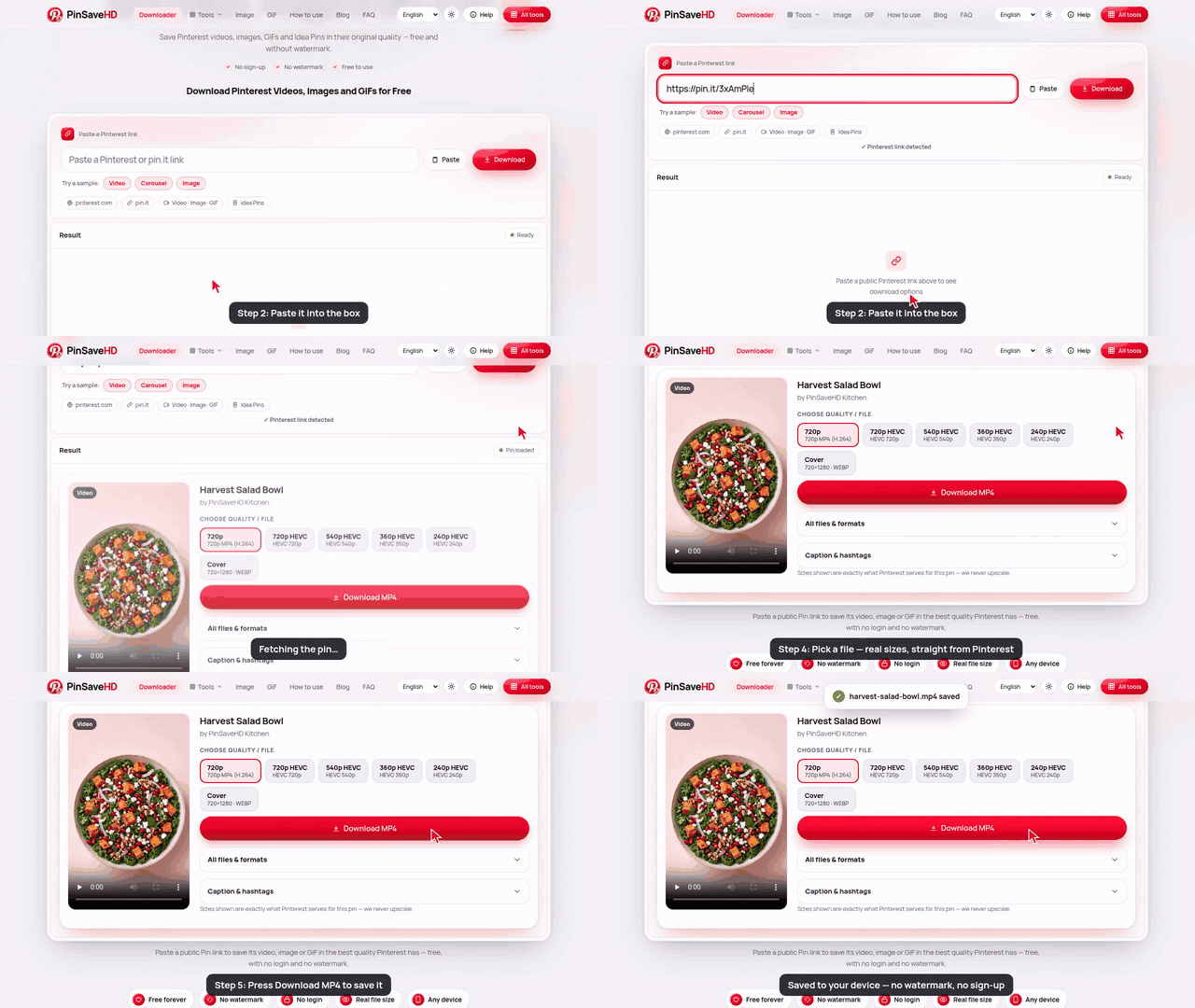
- Copy the pin link. In the Pinterest app tap Share, then Copy link. On a computer copy the address from the browser bar.
- Paste the link into PinSaveHD. Open pinsavehd.com, tap the box at the top and paste the link, or tap the Paste button.
- Press Download. PinSaveHD reads the public pin and shows every file it finds, usually in about a second.
- Choose a quality. Pick the size you want. The top option is marked Best and is the highest quality available.
- Save the file. Tap the download button. The file goes to your Downloads folder, or to Files on iPhone.

After you press Download, a result card appears with a preview of the pin. Under Choose quality you see each video size, for example 720p or 540p. The first option carries a green Best badge, which is the highest quality Pinterest has for that video. Tap the big download button to save it. You can open All files & formats to see every file with its exact size.

How to download Pinterest images
Images work the same way. Paste the pin link and press Download. PinSaveHD shows the original size in pixels, such as 1200×1800, before you save. The file keeps its original format, which is JPG, PNG or WebP. If the original is not available, a 736px version is offered as a backup. For a page made just for photos, use the Pinterest Image Downloader.
How to download Pinterest GIFs
Paste the link of an animated pin. PinSaveHD finds the GIF file and lets you save it so it keeps moving. Some “GIFs” on Pinterest are actually short videos; in that case you get an MP4, which is smaller and smoother. The GIF Downloader page explains the difference.
Carousels, Idea Pins and multiple images
Some pins hold several images or pages. When you paste one of these links, PinSaveHD lists every slide or page on its own row, numbered in order. Save the ones you need, or save them all one after another. Idea Pins can mix video and images, and each part is shown separately.
Download Pinterest boards and profiles
To save many pins at once, paste a board link (for example pinterest.com/name/board-name) into the Board Downloader, or a profile link into the Profile Downloader.
- PinSaveHD lists up to 100 public pins from the board or profile.
- You can download single pins from the list, or save everything as one ZIP file.
- The ZIP is built inside your browser, so large boards may take a moment.
Bulk links: many pins at once
If you have a list of pin links, open the Bulk Downloader. Paste up to 25 links, one per line, and press Download. Each pin appears with its own download buttons, and you can grab them all as a ZIP.
Copy captions and hashtags
Every result has a Caption & hashtags section. Open it to see the pin title, the full caption and the hashtags as chips. Tap Copy next to any of them; the button changes to “Copied!” so you know it worked. The Caption & Hashtag Copier does the same thing on its own page.
Where your files are saved
Android
Files go to the Downloads folder. Open the Files or My Files app and tap Downloads. Videos and images also show up in Google Photos or the Gallery after a moment.
iPhone and iPad
Safari saves to the Files app, in On My iPhone › Downloads. To move a video or image into Photos, open it in Files, tap Share and choose Save Video or Save Image.
Windows
Files land in This PC › Downloads. Press Ctrl + J in most browsers to see your recent downloads.
Mac
Look in the Downloads folder in Finder, or click the download arrow in Safari or Chrome.

Choosing quality and file size
Pinterest stores each video in a few sizes. Higher numbers mean a sharper picture and a bigger file:
- 720p or 1080p – best for watching on a big screen or editing.
- 540p – a good balance for phones.
- 360p or 240p – small files that save data.
Some sizes are marked HEVC. HEVC is a newer video format that gives the same quality in a smaller file. It plays on recent iPhones, Macs and most new Android phones, but some older Windows PCs need an extra codec. If a file will not play, choose the plain MP4 option instead. PinSaveHD never upscales: the size you see is exactly what Pinterest serves.
Troubleshooting
“This pin is private” or nothing is found
The pin is on a secret board, the account is private, or the pin was deleted. Only public pins can be saved.
The link does not work
Make sure you copied the full link, starting with pinterest.com/pin/ or pin.it/. Remove extra words that sometimes come with a shared link. Try opening the link in your browser first to check it loads.
The download opens in a new tab
Your browser is playing the file instead of saving it. On a phone, long-press the download button and choose Download link. On a computer, right-click and choose Save link as.
iPhone tips
Use Safari for the smoothest downloads. If nothing seems to happen, tap the blue arrow in the address bar to see your downloads, then open the file and save it to Photos.
Still stuck? See Download not working or report a problem.
Respecting creators and copyright
Pins are made by real people. Saving a public pin for personal use, like a recipe to cook later or a mood board, is usually fine. Please do not repost other people’s videos or images as your own, remove watermarks, or use them in ads without permission. When you share, credit the creator and link back to the original pin. Read more on our copyright and responsible use page.
Frequently asked questions
Is PinSaveHD free to use?
Yes. Every tool on PinSaveHD is free. There is no sign-up, no app to install and no watermark added to your files.
Do I need a Pinterest account?
No. You only need the link to a public pin, board or profile. We never ask for your Pinterest login.
Can I download private or secret pins?
No. PinSaveHD only works with public content. Pins on secret boards, private profiles or deleted pins cannot be saved.
What is the best quality I can get?
You get the best file Pinterest stores for that pin. For most videos that is 720p, sometimes 1080p. Images come in their original uploaded size when Pinterest keeps it. We never upscale.
Why does the video open in a new tab instead of downloading?
Some browsers play MP4 files instead of saving them. Long-press the download button (phone) or right-click it and choose Save link as (computer).
Where do my downloads go on iPhone?
Safari saves files to the Files app in the Downloads folder. Open the file, tap Share and choose Save Video or Save Image to move it into Photos.
Can I download a whole board at once?
Yes. Paste the board link into the Board Downloader. It lists up to 100 public pins, and you can save them one by one or as a single ZIP file.
How many links can I paste in bulk?
The Bulk Downloader accepts up to 25 pin links in one go, one link per line.
Is it legal to download from Pinterest?
Saving public pins for personal use, such as inspiration or offline viewing, is generally fine. Reposting or selling someone else's work needs the creator's permission.
Does PinSaveHD keep a copy of my files?
No. Files stream from Pinterest straight to your device. We do not store your downloads or keep a download history.
More help: quick how-to · FAQ · all Pinterest tools · blog