
Pinterest Pin Creator – Free Pin & Image Maker
Type a title and get six ready Pin designs, or start from 120+ templates. 35 fonts, text effects, free photos, icons and bulk export, all in your browser. No sign-up, no watermark.
- Free, no sign-up
- No watermark
- Runs in your browser


Made with PinSaveHD Pin Creator
Four pins made in a few clicks from the built-in templates. Pick one to open the same layout in the editor and make it yours.
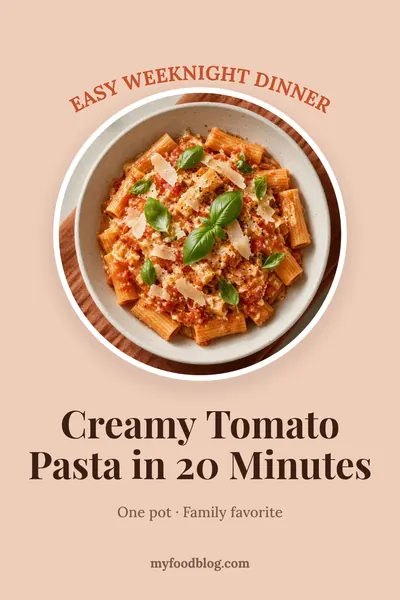
Recipe pin 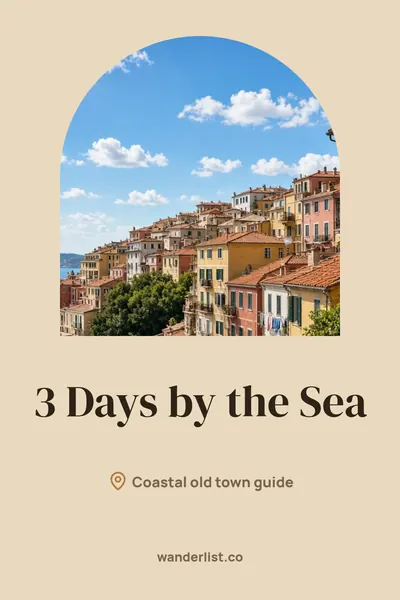
Travel pin 
Sale pin 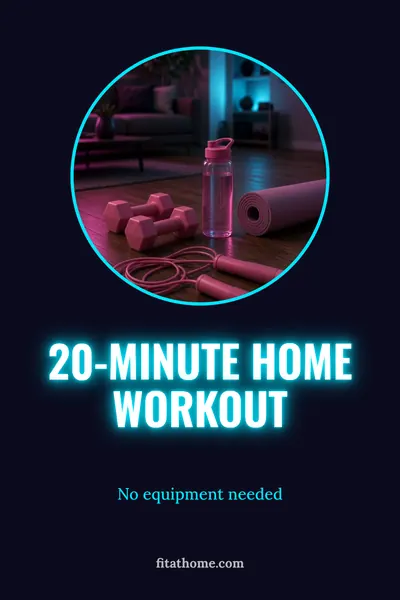
Fitness pin
What is the PinSaveHD Pin Creator?
The Pin Creator is a free design tool for Pinterest. It helps bloggers, shop owners and creators turn photos and a short title into a pin that stands out in the feed. It runs fully in your web browser, so there is nothing to install and no account to create. Your photos stay on your device.
It is built for speed: pick a ready-made layout, drop in your photos and type a title. When you want more control, every part of the pin is a layer you can move, resize, recolour or delete.
What you can do
- Magic Pin – type a title and an optional website, and get six different ready-made designs in a second, with matching free photos if you want them.
- 110+ original templates – in 27 categories, with a Trending tab: blog post, listicle, recipe, home decor, DIY, fashion, beauty, travel, fitness, quote, wedding, parenting, finance, product & sale, Etsy shop, real estate, events, holidays (Christmas, New Year, Valentine’s, Halloween), infographic, checklist, before & after, collage, carousel, Idea Pin story, aesthetic, typographic and text only. Previews use our own sample photos. Search them, then shuffle the style or switch to one of 16 colour palettes and 14 font pairs in one click.
- 35 fonts and text effects – open-source fonts from bold display to handwriting, loaded only when you use them. Add neon glow, outline, long shadow, 3D, gradient fill, hollow letters, curved text, a highlighter marker, bullet and numbered lists, emoji and auto-fit text that shrinks to fit its box.
- Free stock photos – search Wikimedia Commons from inside the editor. Only public-domain, CC0 and CC BY photos are shown, and the credit is kept with each photo so you can copy it. Or upload, paste and drag in your own photos.
- Photo tools – crop and zoom, masks (circle, rounded, arch, blob, heart, hexagon, star), frames, filter presets, brightness, contrast, saturation, blur, duotone, vignette, bottom fade and flip. Any photo can become a blurred background.
- Elements – 100 line icons, shapes, lines, arrows, bursts, ribbons, tags, speech bubbles, badges, call-to-action buttons, stickers and a QR code for your link.
- Canva-style editing – snapping and smart alignment guides, a floating toolbar, rotate handle, lock and hide, drag-to-reorder layers, zoom and pinch-zoom, keyboard shortcuts, dark mode and autosave with “restore last design”.
- Smart checks – a contrast checker warns when text is hard to read and fixes it in one click, and the Pinterest safe-zone overlay shows where buttons cover your Pin.
- Brand kit – save your colours, fonts, logo and website once. Apply them to any design, and add your website as a footer watermark automatically.
- Bulk create – paste a list of titles (or a CSV with title, subtitle and URL) and download one Pin per line as a ZIP.
- Export – PNG, JPG, WebP or PDF at 1× or 2×, file names from your title, all five Pinterest sizes in one ZIP, copy to clipboard, share on mobile, and save or open your design file.
How to make a Pinterest pin, step by step
- Start with Magic Pin or a template. Type your title in Magic Pin to get six designs, or pick one of 120+ templates.
- Choose a size. Standard 2:3 is best for most Pins. Long, square, 4:5 and Idea Pin story sizes are one click away.
- Add your photos. Search free photos, or drop, paste or upload your own. Drop a photo on a frame to fill it.
- Make it yours. Double-click text to edit it. Try a text effect, a new palette or Shuffle style. Drag, resize and rotate anything.
- Export. Download PNG, JPG, WebP or PDF, or every size at once as a ZIP.
Tip: after you download, upload the pin to Pinterest with a keyword-rich title and description. Our Pin Description Generator and Character Counter can help.
Pinterest pin size guide
| Format | Size (px) | Ratio | Best for |
|---|---|---|---|
| Standard pin | 1000×1500 | 2:3 | Almost every pin – the recommended size |
| Long pin | 1000×2100 | 1:2.1 | Step-by-step guides and infographics |
| Square pin | 1000×1000 | 1:1 | Products and simple quotes |
| Idea Pin / story | 1080×1920 | 9:16 | Full-screen story pages and video covers |
Pins taller than 2:3 may be cut off in the feed, so keep your title in the top two thirds. See the full Pinterest image sizes guide, or resize an existing image with the Pin Image Resizer.
Design tips for more clicks
Make the title big and short
Most people scroll Pinterest on a phone. Aim for 4–8 words that a reader can catch in one second. Put the main keyword first.
Use strong contrast
Light text on a dark photo, or dark text on a light band. If a photo is busy, add a tint or a background band behind the text. The contrast checker warns you and can fix it in one click.
Show the result
Use your best, brightest photo. Collages work well for roundups (“25 ideas”), and before/after layouts work well for makeovers.
Highlight one keyword
Colouring one word, like “bedroom” in “Cozy Bedroom Ideas”, draws the eye without making the pin messy.
Brand every pin
Add your website at the bottom. When pins get saved and shared, people still know where they came from.
Test variations
Use Shuffle style or Magic Pin to make a few versions of the same Pin, and see which one gets more saves.
Privacy
The Pin Creator does not upload anything. Photos, designs and your brand kit stay in your browser. The brand kit is saved in your browser storage so it is there next time on the same device. Read our privacy policy.
Frequently asked questions
Is the Pin Creator really free?
Yes. It is free with no sign-up, no limits and no watermark on your pins.
What is Magic Pin?
Type a Pin title and, if you like, your website. Magic Pin picks layouts that suit your topic, mixes colours and fonts, and makes six different designs at once. It can also add matching free photos. Click a design to keep editing it.
Are my photos uploaded to a server?
No. Your own photos are processed inside your browser and never leave your device. Only photo searches go to Wikimedia Commons, and only when you use them.
Can I use the free stock photos commercially?
The photo search only shows public-domain, CC0 and CC BY photos from Wikimedia Commons, which allow commercial use. CC BY photos need credit, so the editor saves the author and licence with each photo. Use Copy credits in the Export window.
What size should a Pinterest pin be?
Use 1000×1500 pixels (a 2:3 ratio) for normal pins. Long pins can be 1000×2100, and Idea Pin or story frames use 1080×1920.
How many fonts and text effects are there?
35 open-source fonts, from bold display to script and handwriting, plus Georgia and Arial. Effects include neon glow, outline, long shadow, 3D, gradient fill, hollow, curved text, soft shadow and a highlighter marker.
Can I make many Pins at once?
Yes. Open Bulk, paste one title per line (or title, subtitle, URL), and download every Pin as a ZIP. You can reuse your current design or let Magic Pin mix templates.
Which file format should I download?
PNG keeps text the sharpest. JPG makes smaller files for photo-heavy pins. WebP is smaller still. PDF is handy for printing. Choose 2× for extra-sharp files.
Can I add my logo and website to every pin?
Yes. Save your colours, fonts, logo and website in the Brand kit. Turn on the footer watermark to add your website to new designs automatically.
Will I lose my design if I close the tab?
No. The editor autosaves in your browser and offers to restore your last design next time. You can also save a design file and open it later.
Does it work on a phone?
Yes. Panels open as bottom sheets, handles are large enough for fingers, and you can pinch to zoom the canvas.
What are the keyboard shortcuts?
Ctrl+Z undo, Ctrl+Y redo, Ctrl+D duplicate, Delete removes a layer, arrow keys nudge by 1 px (Shift for 10 px), Esc deselects, Ctrl+V pastes a photo. Hold Alt while dragging to turn off snapping.
More tools: Pin Image Resizer · Colour Palette Extractor · Video Size & Cover Maker · all Pinterest tools