
Last updated · Reviewed by the PinSaveHD team · How we check facts
Organise Pinterest by giving each board one clear topic and a searchable name, then using sections for sub-topics. Archive old boards, keep 5–10 strong boards on your profile, and review them every few months so saved ideas stay easy to find.
Published 2026-10-31 · by the PinSaveHD team
Most Pinterest accounts start tidy and end up as a wall of boards called “Ideas”, “Stuff” and “Misc 2”. A little structure makes your saved pins far more useful — to you when you are looking for that recipe again, and to anyone who visits your profile. Here is a simple system that scales from ten pins to ten thousand.
Start with outcomes, not topics
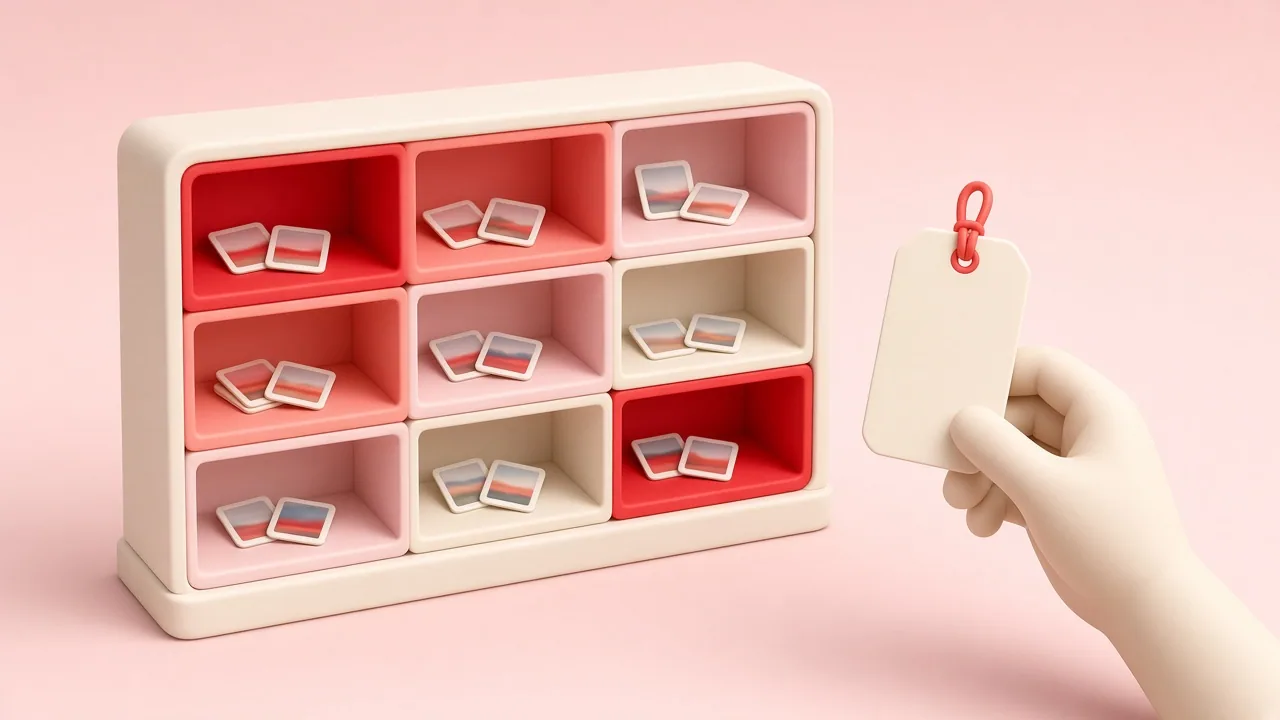
Instead of one giant “Home” board, ask what you will actually do with the pins. “Small balcony garden”, “Kitchen renovation 2026” and “Weeknight vegetarian dinners” are boards you can act on. Clear, specific names also help Pinterest's search understand your boards, which makes them more likely to appear for other people.
Use sections for the next level down
Sections are sub-folders inside a board. A “Kitchen renovation” board might have sections for cabinets, worktops, lighting, tiles and budget ideas. Sections keep related inspiration together without fragmenting your profile into dozens of tiny boards. As a rule of thumb, if a board grows beyond about 200 pins, it is time to add sections.
Write board descriptions
Every board has an optional description that most people leave blank. One or two sentences explaining what the board contains — using words people would search for — improves discovery and reminds you why you created it.
Choose good board covers
Your profile shows each board as a cover image. Pick a representative, high-contrast pin for each one so the profile looks intentional. If you design your own covers, a square around 600×600 works well; our Pin Creatorpin image resizer has a board-cover preset.
Archive, merge and delete
Every few months, review your boards. Archive the ones you no longer use (they disappear from your profile but stay available to you), merge duplicates, and delete pins whose links are broken. Secret boards are ideal for gifts, surprise plans or work in progress.
Keep an offline copy of what matters
Pins can vanish when a creator deletes them or a website goes offline. For boards that matter — wedding planning, a renovation, client references — it is worth keeping a personal copy of the images. The PinSaveHD board downloader exports the most recent public pins of a board as a ZIP with a manifest that links back to every original pin, so you can always credit the creator. Not sure of the exact board link? The username & board URL finder builds and checks it for you.
A naming template you can copy
- Project boards: “Project — Year” (e.g. “Garden makeover — 2026”).
- Evergreen boards: “Topic for Audience” (e.g. “Easy bread recipes for beginners”).
- Sections: short nouns (“Lighting”, “Budget”, “Before & after”).
Spend twenty minutes applying this once, and every future save lands somewhere sensible.
Written and reviewed by the PinSaveHD team. We test every step on real public pins. Spotted an error? Tell us.
Related guides
 How to Download a Pinterest Board (and Its Limits)Export a public Pinterest board to a ZIP of images with a manifest — plus how to handle large boards, videos and sections.
 How to Back Up Your Own Pinterest BoardsOptions for keeping a copy of your Pinterest content: the official data request, board exports and manual backups.
 Private, Secret & Group Boards: What You Can SaveHow Pinterest board visibility works, why downloaders only see public boards, and the legitimate ways to back up your own private boards.
Try the tools


Browse: more creator tips · all Pinterest guides · Pinterest downloader FAQ · all free tools